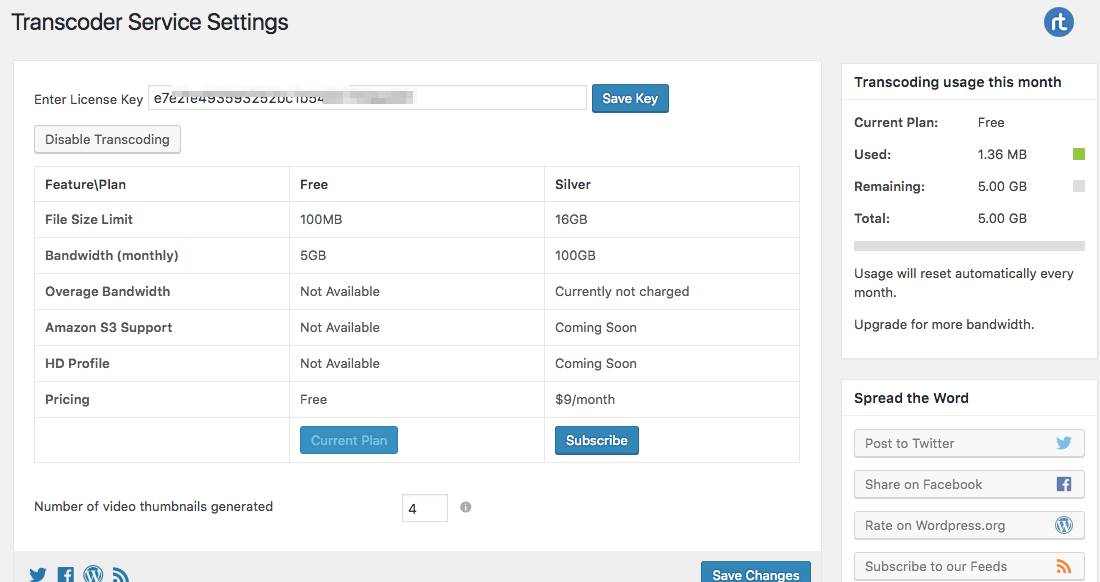
Free plan
$ 0 per month
- 100MB upload filesize limit
- 5GB bandwidth (per month)
- Overage not allowed
- No Amazon s3 support
- No HD Profiling
Silver plan
$ 9 per month
- 16GB upload filesize limit
- 100GB bandwidth (per month)
- Overage not currently charged
- Amazon s3 support coming soon
- HD Profiling coming soon
Subscribe
Note: The Transcoder service works with publicly accessible websites only. If you are using Transcoder on a locally hosted website (i.e. localhost), we will be unable to identify the source of your audio/video transcoding requests.
This allows you to subscribe to one of our transcoding plans for Transcoder plugin. The plugin will work only with a unique license key. You can download our Transcoder plugin from the WordPress.org plugin directory before you use this subscription.
The Silver plan has a monthly subscription charge of USD $9. A PayPal recurring profile will be created under your PayPal account. You will get the license key by email. You can use that key in transcoder plugin’s setting page.
How Transcoder service works:
- Activate the provided license key on your website under Transcoder Settings page.
- Upload a video or audio file from media library or any post/page.
- Wait for some time till the file get converted.
- That uploaded file from your website sends to our server for conversion (Our server setup with FFMPEG package and convert received files). After a successful conversion, it sends back to requested website.
Note: Currently we support only PayPal gateway subscription with this service.
- How is this different from the plugin available on the WordPress.org plugin directory?
- Why do I need transcoding?
- How do I install the Transcoder plugin?
- I have installed Transcoder. Why do I need to subscribe?
- How are payments handled?
- I have installed the Transcoder plugin, but audio/video uploads are not getting transcoded!
- How private are my files?
- Is this plugin compatible with rtMedia?
- Which file types are supported?
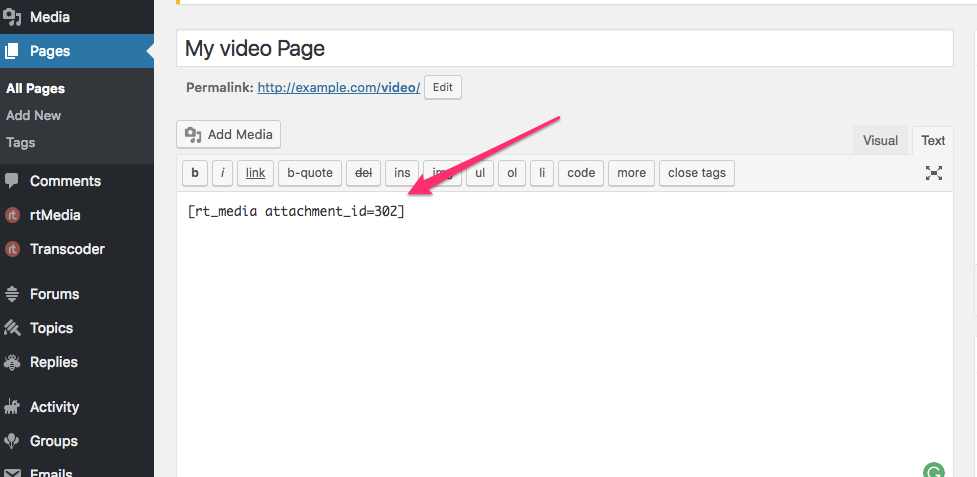
- How and why do I use the shortcode?
- Where are the Settings for this addon?
- What are the pre-requirements for this addon?
- Is this addon translation-ready?
- How do I report bugs or request new features?
- How long will I be eligible for updates?
How is this different from the plugin available on the WordPress.org plugin directory?
The plugin available on the WordPress.org directory is a plugin that requires this Subscription plan to function. In other words, you will need both of these for Transcoder to work- the Transcoder plugin (from the WordPress.org directory) and a Transcoder Subscription plan (from here).
After subscribing to a plan, you will receive a unique License key via email, that you will have to enter into the Transcoder plugin. Transcoding services will not commence without this.
Q. Why do I need transcoding?
Audio and video files come in tens of proprietary and open-source formats. The process of changing file formats from one to another is called transcoding.
Transcoding is needed because most web browsers support the playback of media in only a handful of formats. All unsupported formats are inaccessible within the browser.
Transcoding is needed if you want your users to have a smooth experience while listening and viewing audio and video media.
Q. Where can I get the Transcoder plugin?
Transcoder, like any other plugin, can be directly downloaded from the backend of your website, through the “Plugins” > “Add New” > Search for “Transcoder”.
You can also get it from the WordPress.org plugin directory or from our GitHub repo.
Q. I have installed Transcoder. Why do I need to subscribe?
The Transcoder plugin is only an interface to our audio/video transcoding service. When installed, it helps our servers identify media transcoding requests coming from your website.
When you subscribe to the Transcoding service from this page, you will receive an unique API key that needs to be entered into the Transcoder plugin. Our transcoding servers will only respond to requests from subscribed websites that have a valid API key.
Q. How are payments handled?
We currently support only the PayPal gateway for this subscription service.
The Free subscription plan does not require you to provide any credit card details.
The Silver plan will require you to have a PayPal account to register. Once subscribed, a recurring profile will be created in your account. You can stop these payments at any time, without affecting the Transcoder service for that month.
Q. I have installed the Transcoder plugin, but audio/video uploads are not getting transcoded!
After installing the Transcoder plugin, you will need to subscribe to a plan to avail our transcoding service. After subscribing, enter the generated API key into the Transcoder plugin’s settings and hit “Save Key”. Once done, click on the “Enable Transcoding”.
Locally hosted websites (localhost) and virtually hosted websites can cause problems for the service as these obscure the source of audio/video transcoding requests.
Large media files can take a few minutes to transcode- please wait a few minutes after uploading & refresh your page to see your media.
Q. How private are my files?
In order for us to transcode your media files, we need to copy it over to our server. After transcoding is completed, the media can reside on our server for a maximum of 24 hours, before it is permanently and irreversibly removed by a Cron job.
Thus in theory, we temporarily have access to any file sent for transcoding. However, in practice, there are several files going through our server every hour, which makes it practically impossible to single your media file out.
Besides the technical details, be assured that we at rtMedia consider any violation to your privacy ethically unacceptable.
Rest assured, your files are in safe hands.
Q. Is this plugin compatible with rtMedia?
Yes, Transcoder is designed to be 100% compatible with rtMedia.
All user-uploaded media on an rtMedia-enabled website will be transcoded via Transcoder when installed together.
Starting from version 4.0.7, rtMedia does not have in-build transcoding. If you need transcoding, we encourage you to install Transcoder along with rtMedia.
Read more about this change on our blog.
Q. Which file types are supported?
Transcoder converts all supported audio files to mp3 format and video files to mp4 format.
Supported input formats are:
Audio: mp3, m4a, wav, ogg, wma
Video: 3g2, 3gp, avi, flv, m4v, mov (QDM2 only), mp4, mpg, ogv, webm, wmv
Q. How and why do I use the shortcode?
Add the following to any post/page:
[rt_media attachment_id= xx], where xx is the media ID.
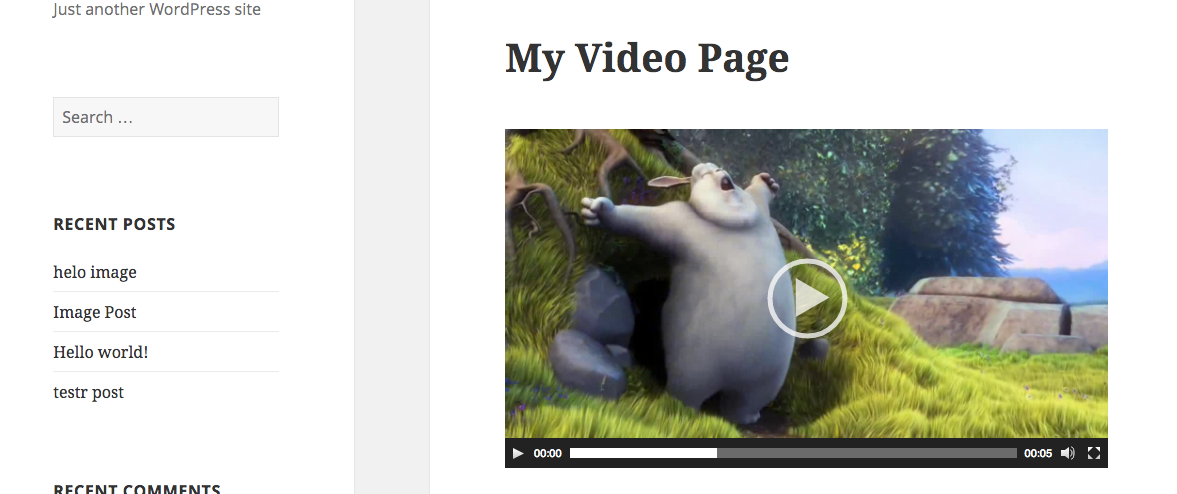
This will display transcoded audio/video files that have been specified by their IDs.
This shortcode allows you to easily embed transcoded media into any page or post on your website.
We will be releasing more powerful shortcodes in the future.
Q. Where are the Settings for this addon?
Once installed, Transcoder appears like any other plugin in your website’s backend. Our backend widget also provides an overview about bandwidth used & remaining.
Q. What are the pre-requirements for this addon?
This listing just provides you a way to subscribe to our transcoding service. To actually enable this service on your website, you will have to download and install the latest version of the Transcoder plugin on your website. The plugin requires only a working install of WordPress version 4.0+ to fully function.
However, to take full advantage of this service we recommend using Transcoder alongside other media plugins, like rtMedia.
Q. Is this addon translation-ready?
Yes, Transcoder is translation ready. Visit the WordPress translation page to contribute!
Q. How do I report bugs or request new features?
You can use our support page to report a bug or request new features.
Q. Will the Transcoder plugin receive updates if I am subscribed to the free plan?
Yes, we will be providing free lifetime updates for the Transcoder plugin regardless of which plan you are subscribed to.
To enable Transcoder service on your website, you will first need to install the Transcoder plugin:
- Download Transcoder plugin from the backend of your website, through the “Plugins” > “Add New” > Search for “Transcoder”
- You can also download a zip file from the WordPress plugin directory or from our GitHub repo. After downloading the .zip file, upload it from “Plugins” > “Add New” > “Upload Plugin”.
- Remember to Activate the plugin once it is installed.
Next, you will need to subscribe to a plan. You can do this from this page or from the within Transcoder plugin.
- Choose one of our plans and complete the registration process. Once completed, you will get an email with a unique API key.
- Paste this API key into the “Enter license key” field of the Transcoder plugin and click on “Save key”
- Finally, click on the “Enable transcoding” button to start transcoding services.
= 1.0.5-Sep 01, 2016 =
- Fix backward compatibility for PHP v5.3
- Delete transcoded files when attachment is deleted
- Display notice message to subscribe the transcoding service
= 1.0.4-Aug 31, 2016 =
- Add rtt_wp_parse_url function to parse URL to add backward compatibility
- Fix media is transcoding message bug
= 1.0.3-Aug 30, 2016 =
- Remove warnings and notices related to the activity and media related pages
- Show default media thumbnail when poster attribute is empty
= 1.0.2-Aug 25, 2016 =
- Show message in rtMedia buddypress activity when media is sent to the transcoder
- Remove notices and warnings
- Update transcoded audio file URL in rtMedia activity
= 1.0.1-Aug 24, 2016 =
- Add backward compatibility
= 1.0.0 =
Initial release
Links: Download Transcoder plugin | Documentation | Contact us
Recommended Products
$499.00